How to View the Expected Delivery Date (EDD) [Step-by-Step guide]
Last updated: October 8, 2026
Once a shipment is created, you can view its Expected Delivery Date (EDD) in techTRACK. The displayed date may come directly from the Carrier, be calculated by the integration from Carrier data, or use the Deliver By Date from techSHIP as a fallback when available.
This guide explains how to locate the EDD and how to interpret estimates provided by specific supported Carrier integrations.
Do not treat the EDD as a guaranteed delivery time. Its timezone and interpretation depend on the date source and the information available for the shipment.
EDD availability depends on the supported Carrier integration and the shipment data available. For details, see 📄 techTRACK & techAUDIT Supported Carriers - Master List [Guide].
Carrier-Specific EDD Details
Some Carrier integrations calculate or interpret the EDD differently. The following details explain how you should interpret estimates for specific supported integrations.
Freightcom
For Freightcom, the integration can calculate the EDD by combining the shipment's induction date with the route's transit time. The calculation counts Monday through Friday and does not exclude public holidays.
The resulting EDD is an estimate based on transit data, not a delivery appointment or shipment-specific promise from the Carrier. It may first become available after induction information is recorded and a subsequent tracking synchronization occurs.
Dicom
For Dicom, the integration can calculate the EDD using induction information and route transit information. When transit days are added, the calculation counts Monday through Friday and does not exclude public holidays.
A Dicom route estimate reflects transit information for the applicable route and is not a shipment-specific commitment issued by the Carrier. Depending on the available induction data, a subsequent tracking synchronization may be required before the estimate appears.
Evri
For Evri, the EDD represents the end of a carrier-provided delivery window. You should interpret this value as an estimated delivery date, not as confirmation that a delivery event has already occurred.
View the Expected Delivery Date
To view the EDD:
Open the tracking details.
For instructions on opening tracking details, see 📄 How to View Tracking Details [Step-by-Step guide].
Locate the Expected Delivery Date field.
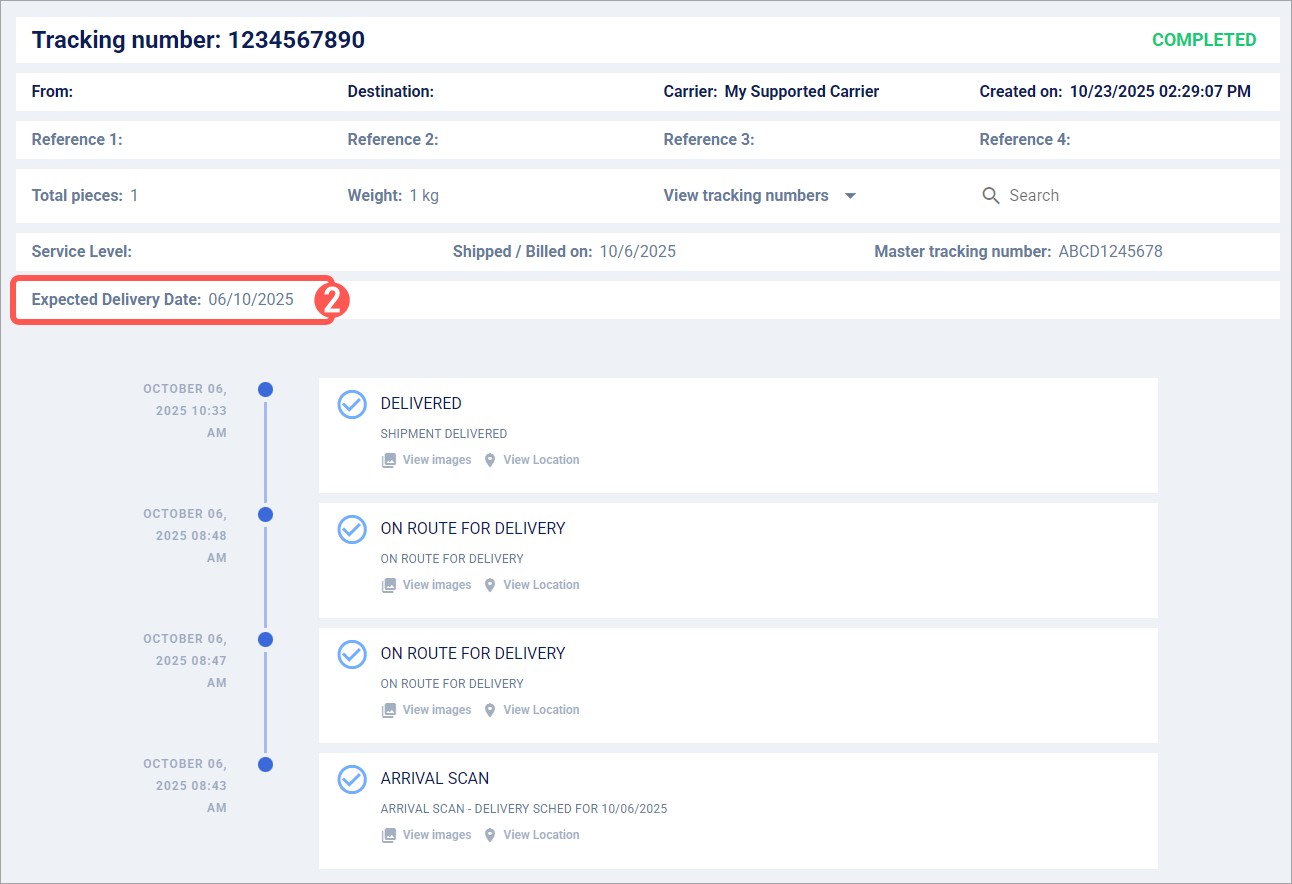
You can now review the shipment's Expected Delivery Date. If no value is shown, confirm whether the integration supports EDD in 📄 techTRACK & techAUDIT Supported Carriers - Master List [Guide] and, for calculated estimates, allow for a subsequent tracking synchronization when applicable.